
Getting Started
Export records to a file
What this does
Takes any set of records out of WindoorERP as a spreadsheet — for an analysis the built-in reports do not cover, for an auditor, or as the first half of a bulk update.
Steps
-
01
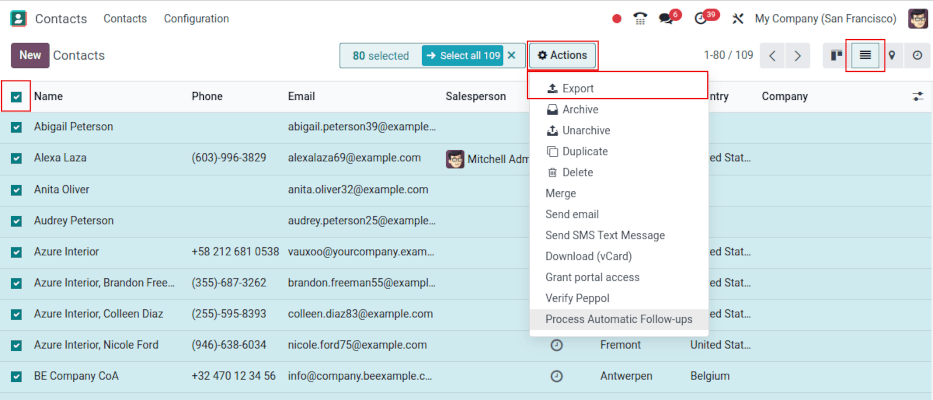
Open the screen holding the records and switch to the ☰ (list) view.
-
02
Tick the records to export — or the header checkbox for everything the current filter shows.
-
03
Click ⚙ (Actions) and choose Export.
-
04
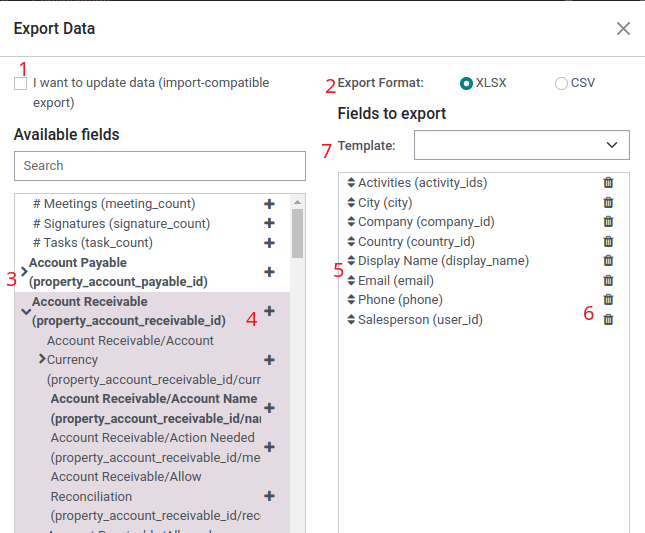
Pick the format: .csv for plain data, .xlsx for a real spreadsheet.
-
05
Add the fields you need to Fields to export, drag them into the order you want, and remove any you added by mistake.
-
06
Click Export.
Exporting in order to re-import
Tick I want to update data (import-compatible export) and the field list narrows to what can be imported again, and the External ID of every record travels with the file. That ID is what turns a second import into an update instead of a pile of duplicates.
Save the field selection
For a report you produce every month, open the template dropdown, click New template, name it, and save with the 💾 (save) icon. Next time, pick the template and the whole field list comes back.
Common mistakes
- Exporting tens of thousands of rows in one go and hitting a timeout. Filter into smaller batches.
- Exporting without import-compatible ticked, then trying to import the file back — half the columns will not map.
- Sending a raw export outside the company without checking what is in the columns. Cost prices travel very easily.
Was this article helpful?
Thanks — your feedback helps.
Running a window or door factory?
Ask for a demo