
Getting Started
Search, filter, and group records
What this does
Cuts a long list down to the records you actually want. The search bar at the top of every view does three separate jobs — search, filter, and group — and they combine.
Steps
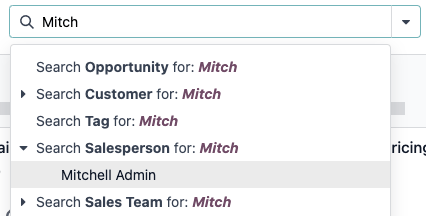
Typing in the search bar behaves like a contains condition: every record holding those characters in that field is kept.
-
01
Click the search bar and type what you are looking for: a customer, a product, an order number.
-
02
Pick the field to search in from the dropdown that appears — or click the ▸ (submenu) icon next to it to pick an exact value instead of a partial match.
-
03
Press Enter. The term becomes a facet in the search bar.
-
04
Remove a facet with its ✖ when you are done with it.
Filters
Open the ▾ (dropdown) at the right of the search bar and choose from Filters. Each view starts with its own default selection — a report may already be limited to the last 365 days, for instance — and you can add to it or clear it.
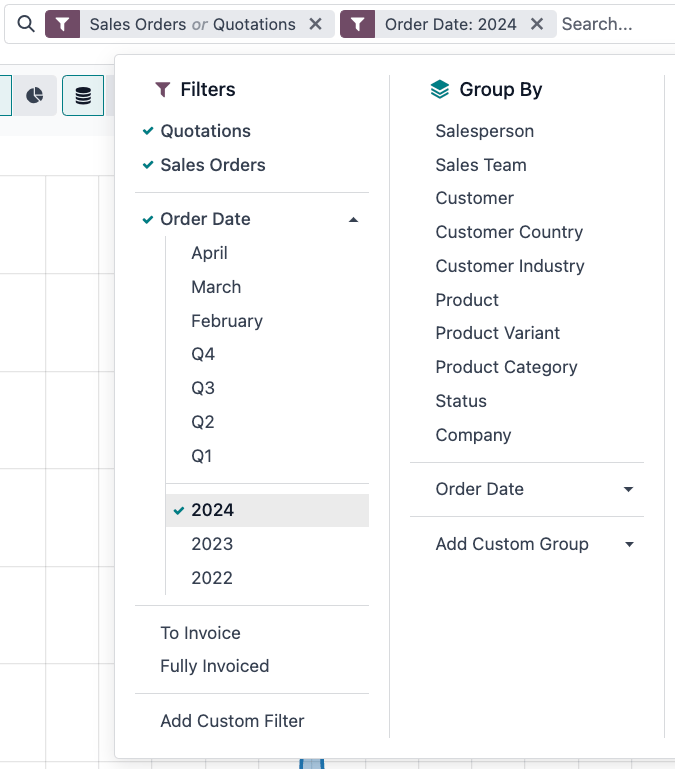
The grouping of the filter list is not decoration. Filters picked from the same group are combined with OR — a record matching any of them is kept. Filters picked from different groups are combined with AND — a record must match all of them.
Custom filters
- Open Filters › Add Custom Filter.
- Choose Match all of the following rules (AND) or Match any (OR).
- Build a rule from three parts: the field, the operator, and the value. Fields with a ▸ (submenu) icon hold nested fields — a customer's country, for example.
- Use + (plus) to add a rule, (node) to add a nested group with its own any/all setting, and ✖ to delete one.
- Click Add.
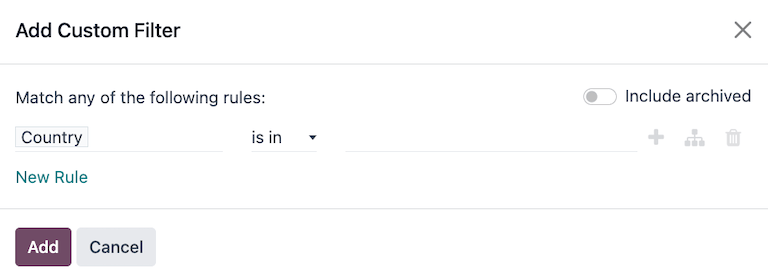
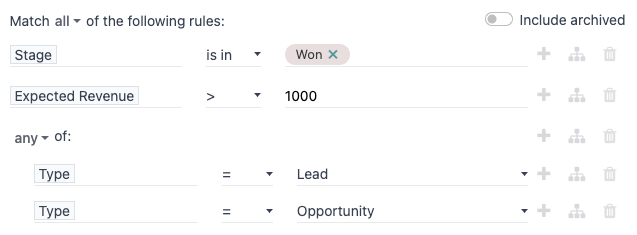
Turn on Include archived in the same dialog when you need records that were archived rather than deleted. In developer mode the dialog also shows the raw domain in a code editor, and every field's technical name.
Group records
From the same dropdown, pick a Group By option — the records cluster instead of disappearing. Add Custom Group groups by any field on the model.
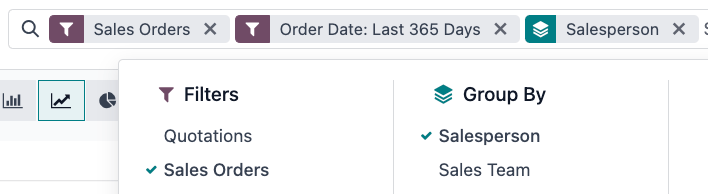
Groups nest: the first one you pick is the outer level, the next splits each of those, and so on. Filters and groups work together.
Save a search
- Set up the filters and groups you want.
- Open the dropdown and choose Save current search.
- Give it a Filter name, and tick Default filter if this should be how the screen opens every time.
- To share it, fill the Shared with field with the colleagues who should see it.
- Click Save.
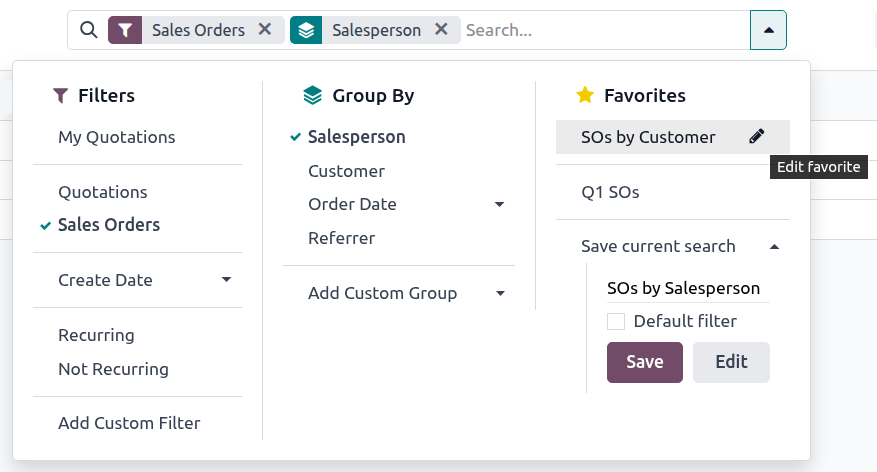
Saved searches live under Favorites in the same dropdown — yours first, then the ones shared with you. Hover one and click (Edit favorite) to rename it, re-share it, or archive it.
Common mistakes
- Reporting that "the record is gone" when a default filter is simply hiding it. Clear the search bar before concluding anything.
- Expecting two filters from the same group to narrow the list — they widen it.
- Setting a personal favourite as the default and forgetting: every colleague who opens the screen still sees their own.
Was this article helpful?
Thanks — your feedback helps.
Running a window or door factory?
Ask for a demo