
Getting Started
Move work through stages
What this does
Stages are the columns of a pipeline: the ordered steps a card — an opportunity, a ticket, a job — passes through. They are yours to rename and reorder to match how your team actually works.
Before you start
- Developer mode must be active to reach the stages menu: Settings › General Settings › Developer Tools › Activate the developer mode.
- Stages belong to the app you are in — the pipeline of one team is not the pipeline of another.
Steps
-
01
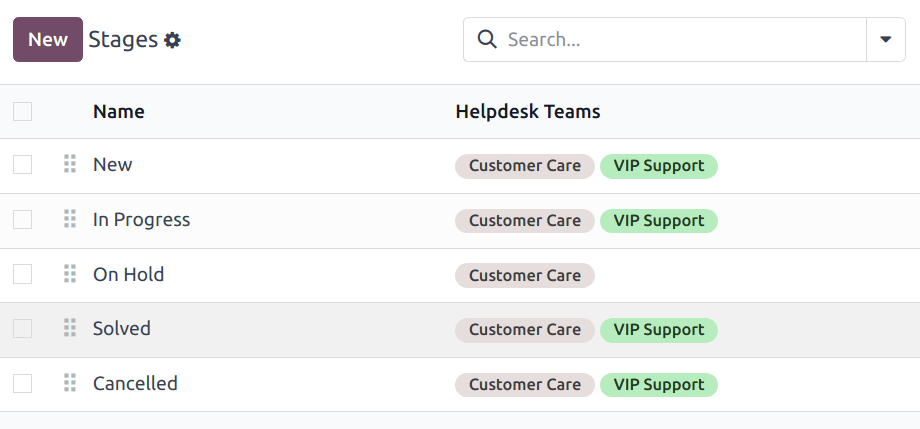
Go to the app and open Configuration › Stages. They are listed in pipeline order.
-
02
Drag the ⠿ (draggable) handle at the left of a row to reorder them. In the kanban view you can drag whole columns instead.
-
03
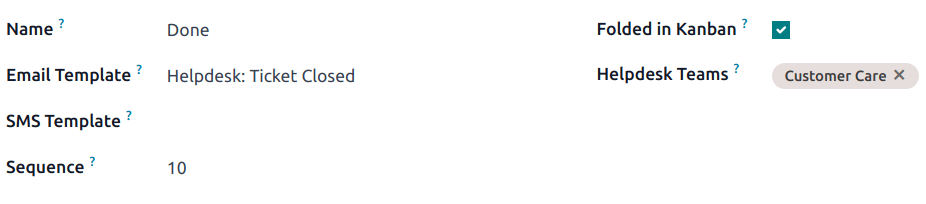
Click New to add one, and give it a Name.
-
04
Pick the Teams the stage belongs to — a stage can serve more than one team.
-
05
Save.
Catch work that has gone quiet
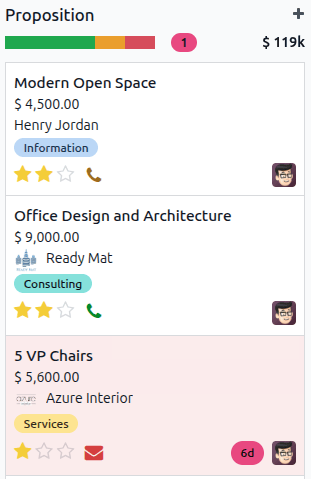
In apps that use stages, Days to rot flags cards left sitting too long: past the threshold, the card turns red and the stage shows how many are rotting.
- Switch to the kanban view.
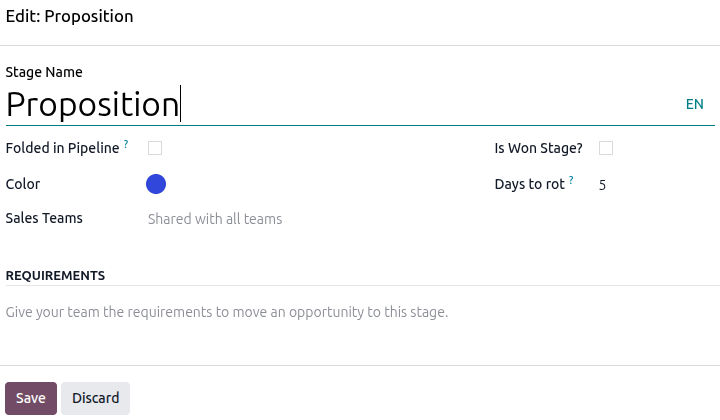
- Click the ⚙ (settings) icon on the stage and choose Edit.
- Enter a number of days in Days to rot — zero turns the feature off.
- Save.
The progress bar
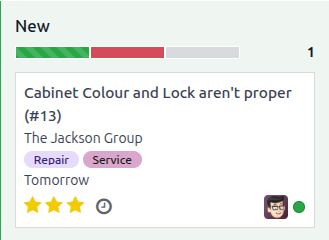
Above each stage, a bar breaks the cards down by status — in progress, ready, blocked, and so on, depending on the app. Hover a colour for the count; click it to filter the stage down to that status.
Send an email or SMS on arrival
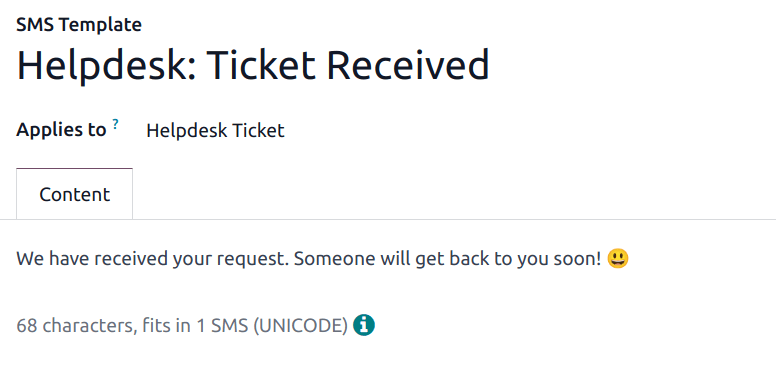
An Email Template on a stage sends automatically when a card reaches it; an SMS Template does the same by text message. Pick an existing template, or type a new name and choose Create and edit. Sending SMS needs a messaging provider configured for your database.
Fold a stage
Ticking Folded in Kanban on the stage form collapses it to a narrow column and marks the cards in it as closed. Use it for won and cancelled stages only.
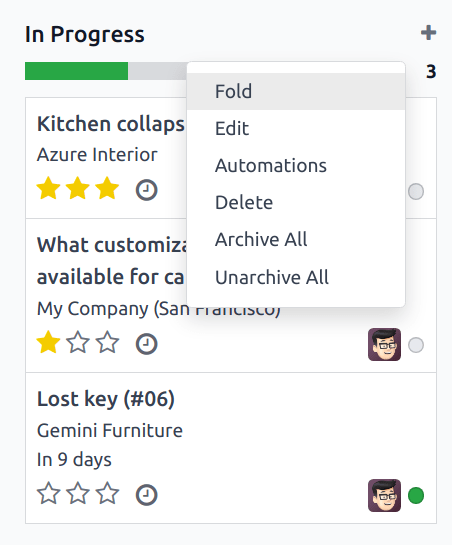
To tidy the board temporarily instead, hover the top of a column, click the ⚙ (gear) and choose Fold. That is a view preference: it closes nothing.
Common mistakes
- Ticking Folded in Kanban on a working stage — every card in it counts as closed, and your reports quietly go wrong.
- Deleting a stage that still holds cards instead of moving them first.
- Setting an email template on a stage without checking what it says: the customer receives it the moment anyone drags a card.
Was this article helpful?
Thanks — your feedback helps.
Running a window or door factory?
Ask for a demo