
Getting Started
Schedule a follow-up activity
What this does
An activity is a follow-up task attached to a record — call this customer, chase this approval, upload this drawing. It carries a deadline and an owner, and it nags until it is done.
Steps
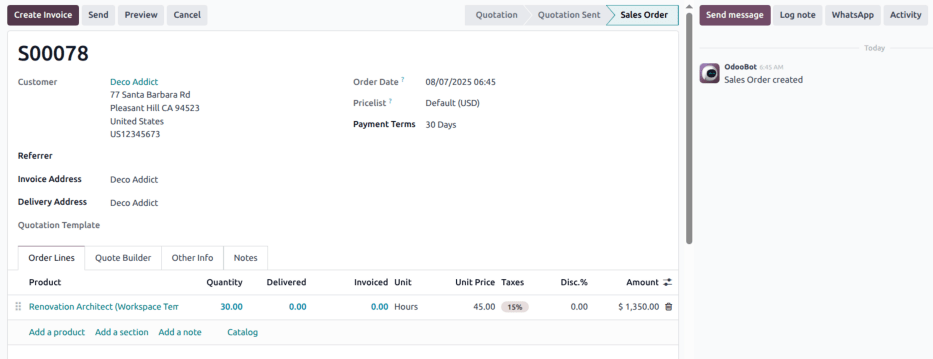
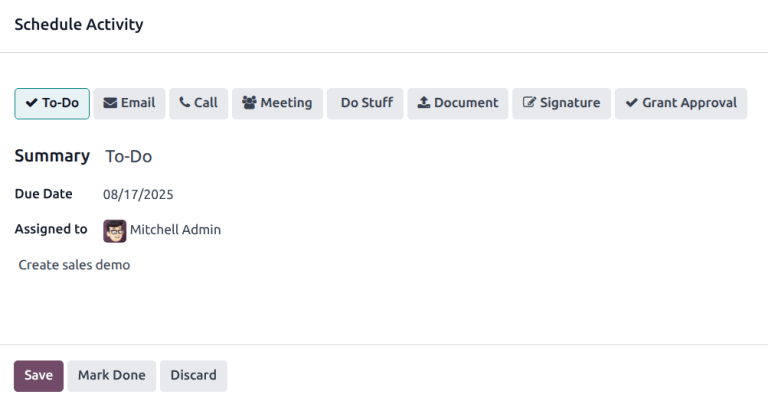
The activity appears in the chatter under Planned Activities. When it is finished, Mark Done moves it into the record's history.
Choosing Meeting and clicking Schedule opens your calendar so you can place it on a real slot; the summary becomes the event title.
-
01
Open the record and click Activity at the top of the chatter.
-
02
Choose the type: To-Do, Email, Call, Meeting, Document, Signature, or Grant Approval.
-
03
Write a short Summary — "Discuss the revised quotation" beats "follow up".
-
04
Pick the Due Date, and change Assigned to if the task is not yours.
-
05
Add anything the person needs to know in the note field, and click Save.
Other places to schedule one
- Kanban view — click the 🕐 (clock) icon at the bottom of a card, then + Schedule An Activity.
- List view — use the clock in the Activities column (reveal the column with the ⚙ (adjust) icon at the far right of the header row).
- Activity view — the 🕐 (clock) icon among the view switchers, where every record and every activity type form a grid. Hover a cell and click +.
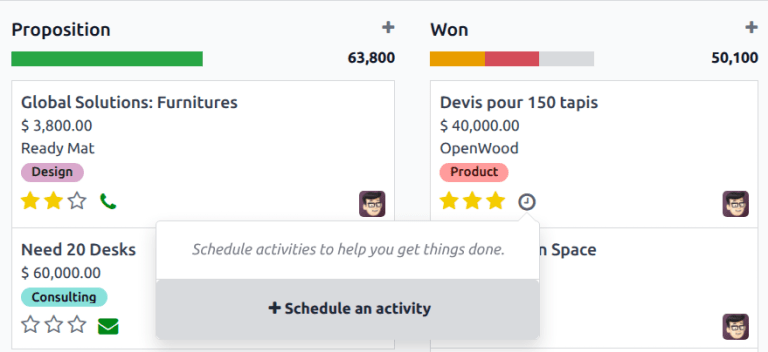
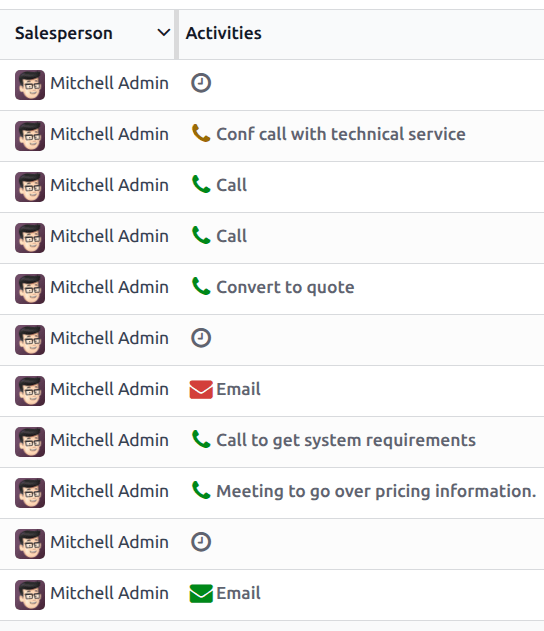
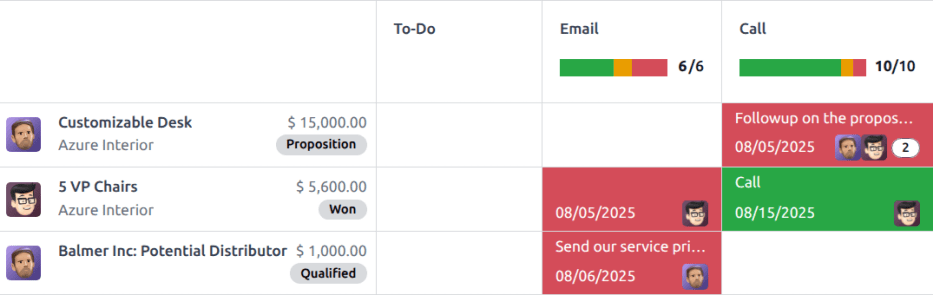
Where a record already has an activity, the clock is replaced by the icon of that activity type — a phone, an envelope, a check. Colours are consistent everywhere: green is due later, orange is due today, red is overdue.
See everything you owe
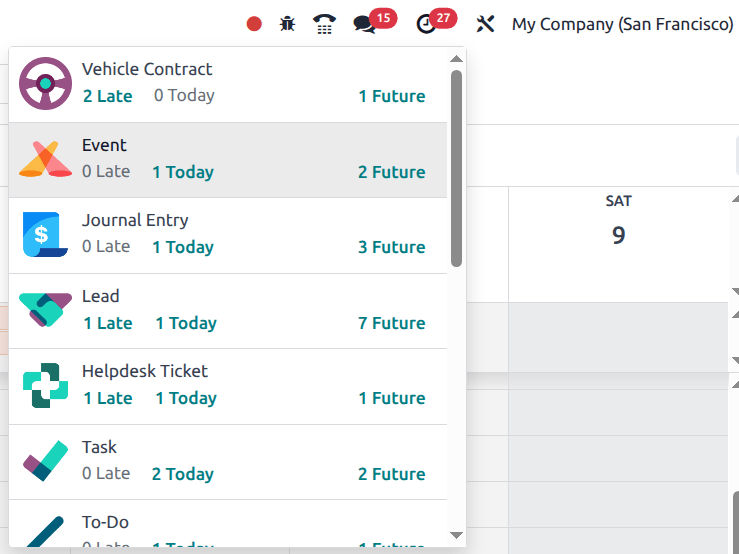
The 🕐 (clock) icon in the top bar lists all your activities, grouped by application and split into Late, Today and Future. The red bubble is the count.
Configure activity types
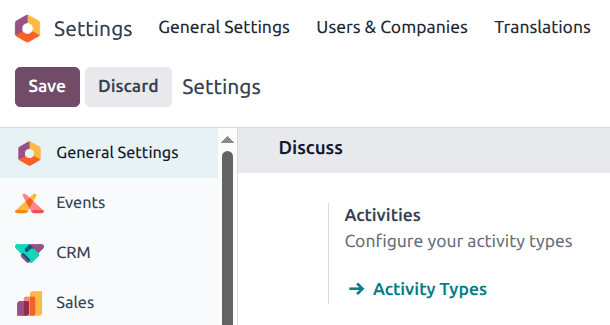
Types live under Settings › Discuss › Activity Types, and most apps also keep their own list under their Configuration menu.
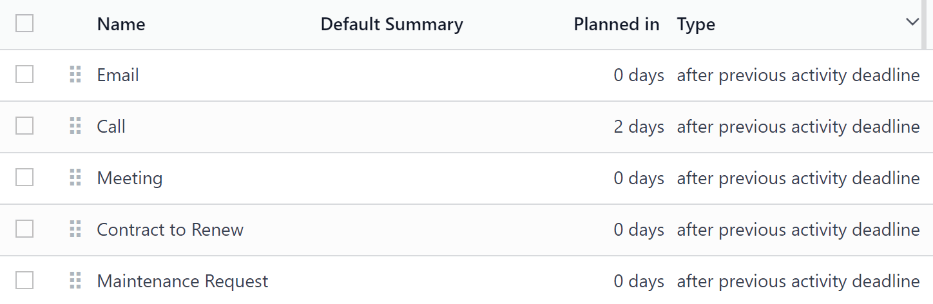
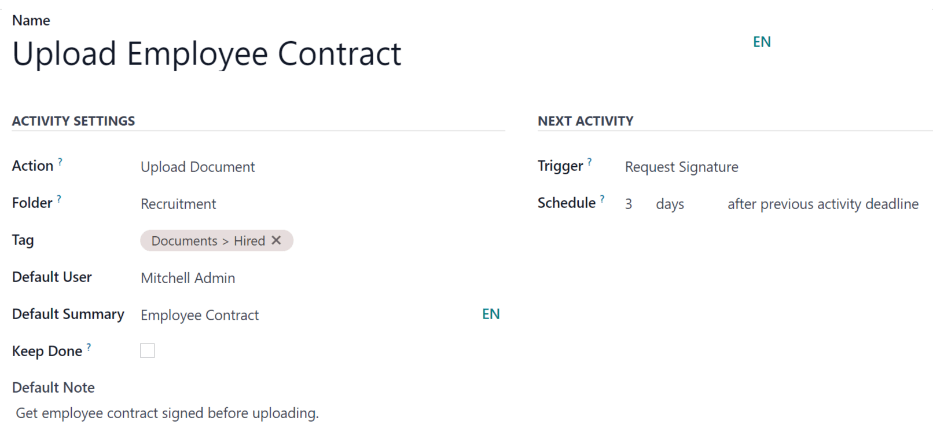
On a type you can set an Action (upload a document, log a call, create a meeting, request a signature), a Default User and Default Summary, whether done activities stay visible, and — under Next Activity — a follow-up that is either suggested or scheduled automatically a set number of days after this one.
Common mistakes
- Logging a note instead of scheduling an activity. A note is a record of the past; only an activity comes back to find you.
- Assigning activities to yourself out of habit when the work belongs to a colleague.
- Letting the red count grow. Overdue activities are the earliest visible symptom of a job going wrong.
Was this article helpful?
Thanks — your feedback helps.
Running a window or door factory?
Ask for a demo