
Getting Started
Work faster with keyboard shortcuts
What this does
Keeps your hands on the keyboard for the things you do fifty times a day: create, save, move to the next record, jump to another app.
Steps

-
01
Hold Alt (Windows or Linux) or Ctrl (macOS) — every element that has a shortcut shows its key.
-
02
Press the key while still holding, and the button is pressed.
-
03
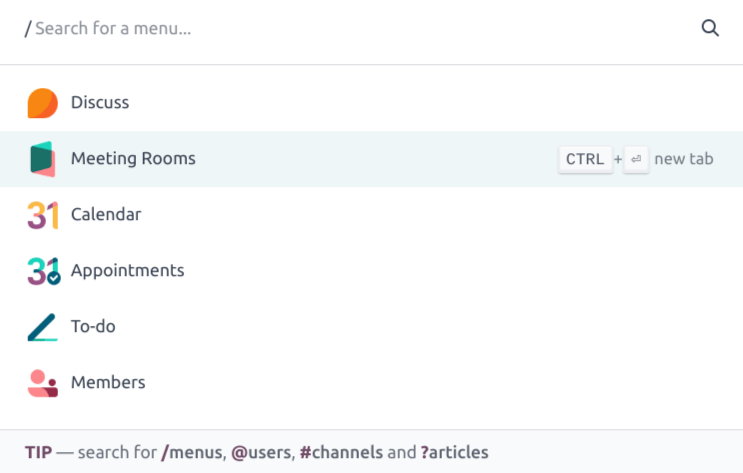
Press Ctrl+K (or ⌘+K) to open the command palette, and type what you are looking for.
-
04
Move through the results with the arrow keys and press Enter — or Ctrl+Enter to open it in a new tab.
The shortcuts worth learning
Windows and Linux use Alt; macOS uses Ctrl.
- + B — previous breadcrumb.
- + C — create a new record.
- + S — save changes.
- + J — discard changes.
- + N / + P — next and previous page.
- + Q — jump to the search bar.
- + 1 to + 9 — select a menu.
- + H — the home screen.
- Ctrl+K / ⌘+K — the command palette.
- Alt+Shift+H — open this manual on whatever screen you are on.
Inside the command palette
A first character narrows the search:
/— menus, applications and modules.@— users.#— Discuss channels.?— knowledge articles.
Common mistakes
- Assuming a shortcut is broken when a browser extension has taken the same combination — test in a private window before reporting.
- Using the browser's Back button instead of Alt+B: unsaved changes are lost.
Was this article helpful?
Thanks — your feedback helps.
Running a window or door factory?
Ask for a demo