
Add and manage users
Set access rights for a user
What this does
Access rights decide what a user can open and change. Giving each person only what they need is what stops a quotation clerk from editing the price engine.
Before you start
- Only an administrator can change access rights, and only a user whose own Administration field is set to Access Rights can change them for someone else.
- A wrong change can lock everybody out of the settings — the impotent admin problem, which needs WindoorERP support (info@windoorerp.com) to undo. Change one thing at a time and test it.
Roles
Every user gets a role when they are created. The role decides which groups — and therefore which rights — they start with.
- Administrator — internal user with technical features, product creation, exports and other advanced permissions.
- User — internal user who works in the back end and creates and edits records, with less reach than an administrator.
- Portal — a customer or supplier who only sees their own documents.
- Public — a website visitor. The least access of all.
Steps
-
01
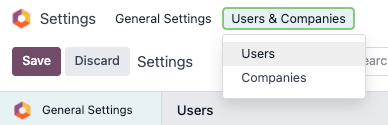
Go to Settings › Users › Manage Users and open the user.
-
02
Scroll to the Access Rights tab.
-
03
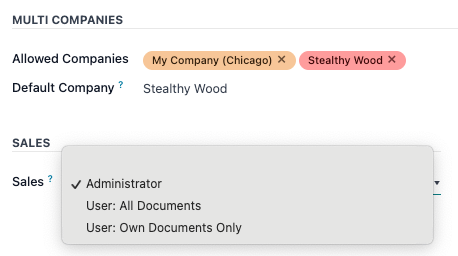
For each application, pick a level from the dropdown. The usual choices are Blank/None, User: Own Documents, User: All Documents and Administrator.
-
04
Set the Administration field to Settings or Access Rights only for the people who really administer the database.
-
05
Save, then sign in as that user (or ask them) and confirm they see what you intended.
Fine-tune a single permission
Roles hand out rights in bundles. To grant or remove one specific right, activate developer mode, open the user, and use the Technical Access Rights tab.
- Selected groups — the detailed rights produced by your choices on the Access Rights tab. Click Add a line to add one, or the ✖ (cancel) icon to remove one.
- Groups added automatically — rights implied by what is already granted. They cannot be removed here; they disappear when the group that implies them does.
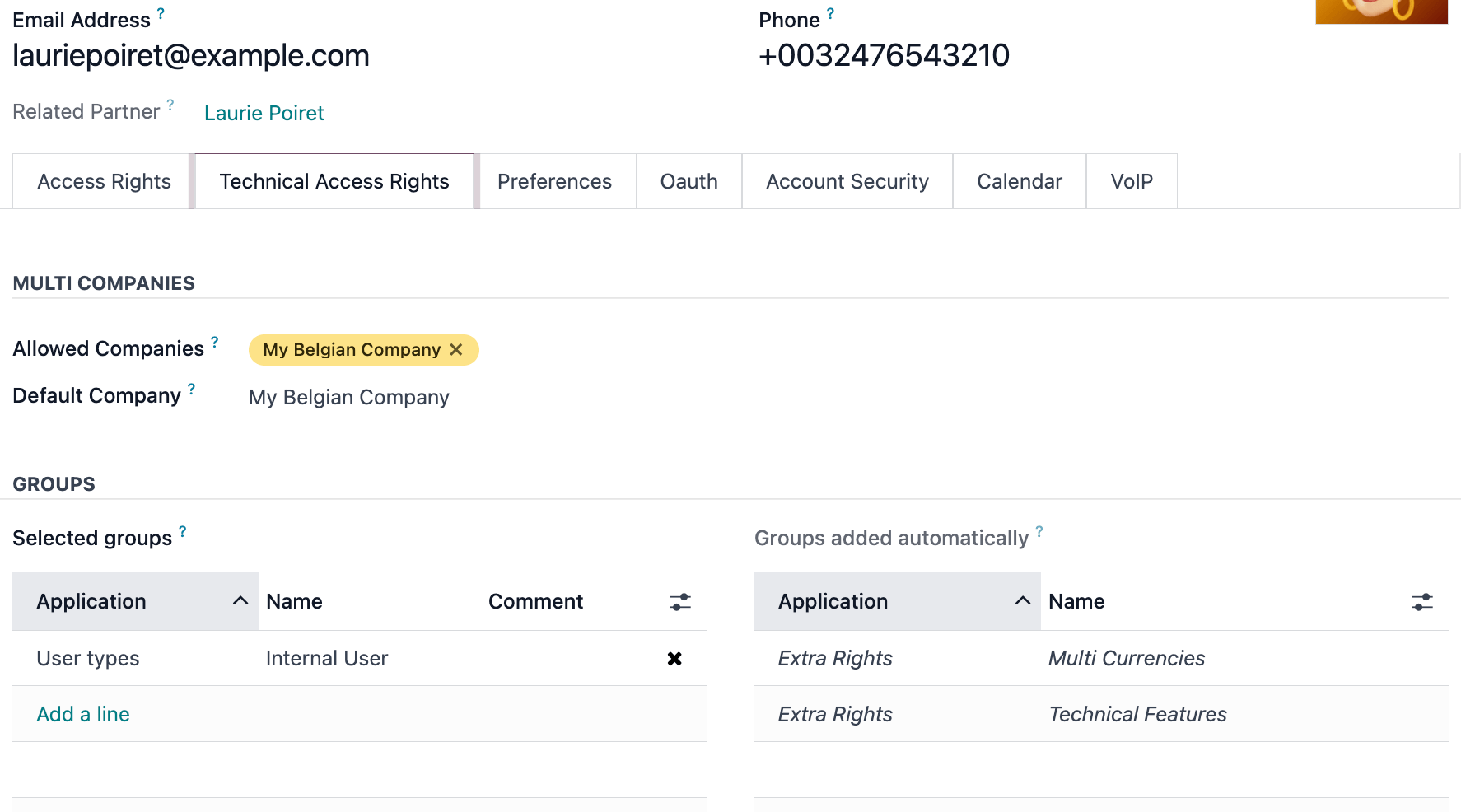
Colours carry meaning: green means the right is already provided by another one, red means two rights conflict and cannot both be active, and italics means the right is implied by a selected group.
Create or modify a group
Groups are app-specific bundles of rights. Use them when the same set of permissions has to reach many people.
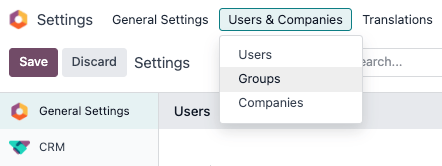
- Activate developer mode and go to Settings › Users & Companies › Groups.
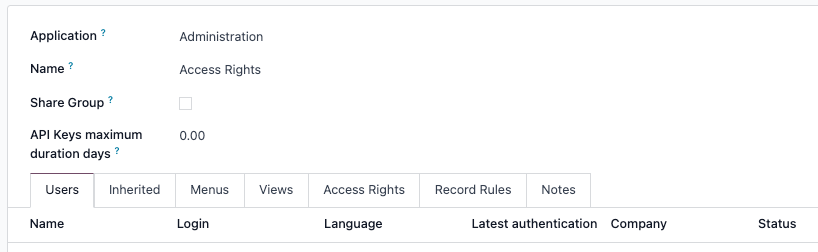
- Click New, choose an Application and enter a Name. Tick Share Group if the group exists to share data with outside users.
- Fill in the tabs: Users (who is in it), Inherited (groups its members also get), Menus and Views (what they see), Access Rights (read / write / create / delete per model), and Record Rules (which records, not which models).
- Save, then test with a real user account before rolling it out.
Record rules are written as a domain — a list of conditions
that filters records, for example
[('user_id', '=', user.id)]. WindoorERP ships a library of
ready-made rules; if you are not fluent in domains, ask
info@windoorerp.com rather than experimenting on live
data.
Automatic logout
When the auth_timeout module is installed, a
Timeouts tab appears on the group form:
- Inactivity — locks the screen after a period with no activity, with or without two-factor verification on the way back in.
- Session — logs the user out after a fixed duration, however busy they were.
Both are set in minutes, hours or days, and apply to everyone in the group.
Superuser mode
Superuser mode ignores record rules and access rights entirely. Only users with Settings rights on Administration can enter it.
- Activate developer mode.
- Open the 🐞 (debug) menu in the top bar.
- Click Become Superuser at the bottom of the menu.
- Leave it again by signing out from the superuser account named in the upper-right corner.
Common mistakes
- Removing your own administration rights, or every administrator's — nobody left can put them back.
- Working in superuser mode "to get it done": the rules that would have stopped a mistake are off, and the mistake is saved anyway.
- Changing rights on a live database without testing on a copy first.
Was this article helpful?
Thanks — your feedback helps.
Running a window or door factory?
Ask for a demo