
Set up your company and its branches
Edit an email template
What this does
Email templates are the saved emails your database sends over and over — the quotation email, the invoice email, the delivery notice. Editing one changes every future send, so the wording stays consistent without anyone retyping it.
Before you start
- Templates are reached in developer mode, under Settings › Technical › Email › Email Templates.
- They are written in QWeb/XML, but you edit them in a normal editor — the code is generated for you.
- Templates you customize are yours to maintain. WindoorERP support can restore a factory template, not rebuild your version of it.
Steps
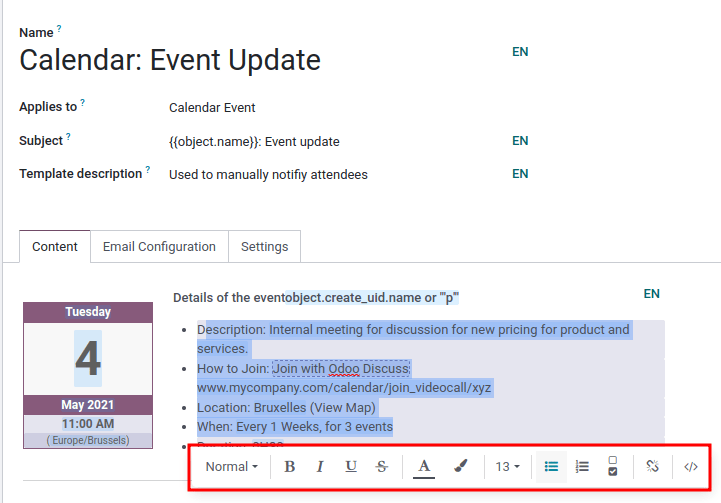
Selecting text also brings up a rich-text toolbar for headings, font size and style, colour, lists and links.
-
01
Open the template you want to change.
-
02
Click into the Body on the Content tab.
-
03
Type
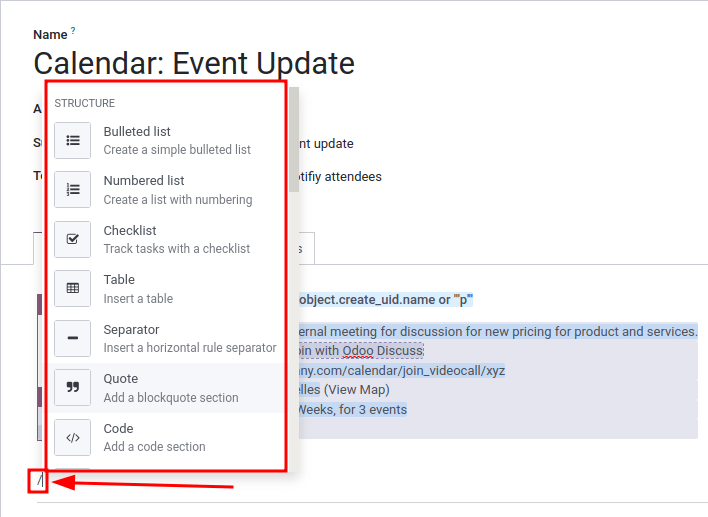
/to open the powerbox and insert a heading, list, table, image, link, button, signature or dynamic placeholder. -
04
To reformat text you already have, select it, type
/and pick the format. -
05
Save, then send one test email to yourself before letting it loose on customers.
Dynamic placeholders
A dynamic placeholder pulls a real value out of the database
when the email is sent, so each recipient gets their own. The customer
name on a sales order, for instance, is
{{ object.partner_id }}.
- In the Body, type
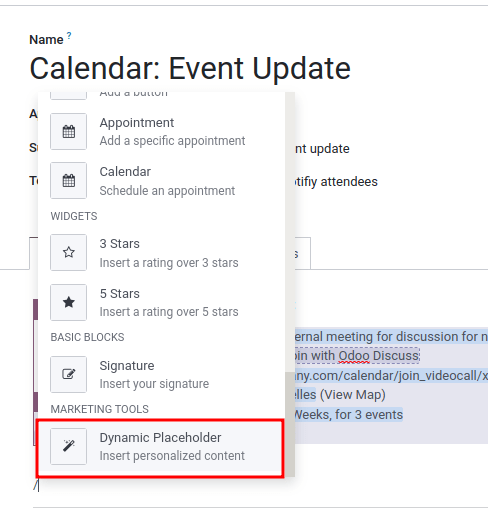
/. - Scroll to Marketing Tools and choose Dynamic Placeholder.
- Pick the field, then the sub-model and sub-field if the prompt asks for them.
Placeholders also work in the Subject, in the Language field, and in the fields of the Email Configuration tab. Search by the field label you see on screen to find the right one.
The code editor
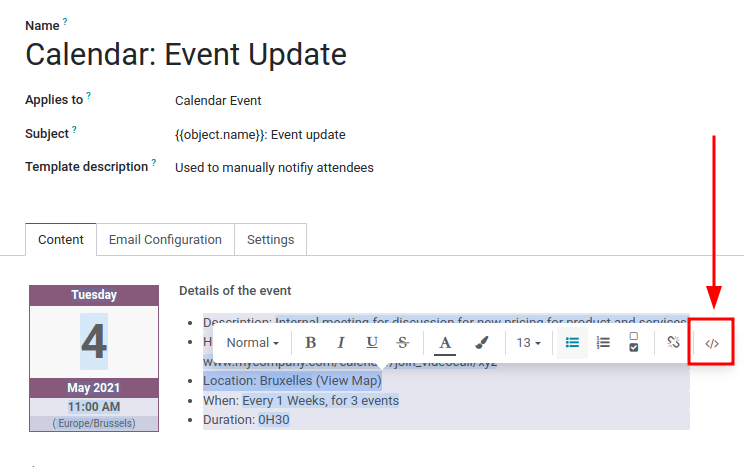
In developer mode, the </> icon in the upper-right corner of the template switches to the XML/HTML source and back. This is the real template code: a bad edit can break the email immediately, or silently at the next upgrade.
Put a template back the way it was
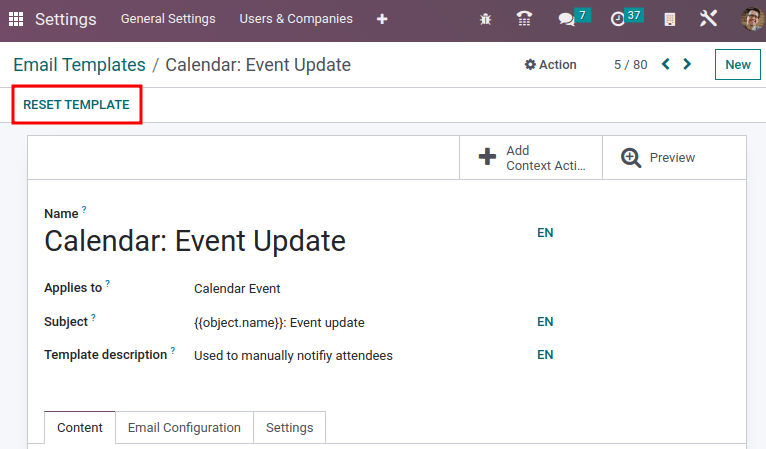
If a template stops working after an edit, click Reset Template at the top left. It returns to the version WindoorERP ships, and your changes are gone.
Where replies go
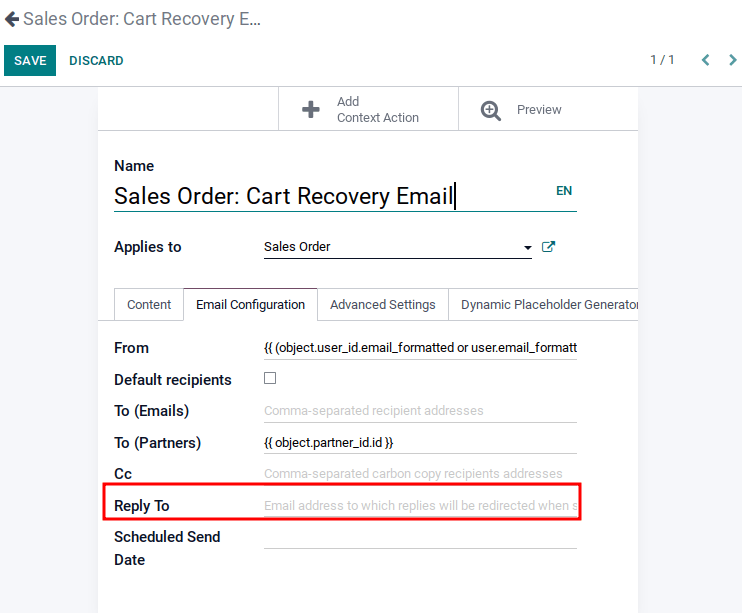
The Reply To field on the Email Configuration tab redirects replies when the template is used for mass mailing. Separate several addresses — or placeholders — with commas.
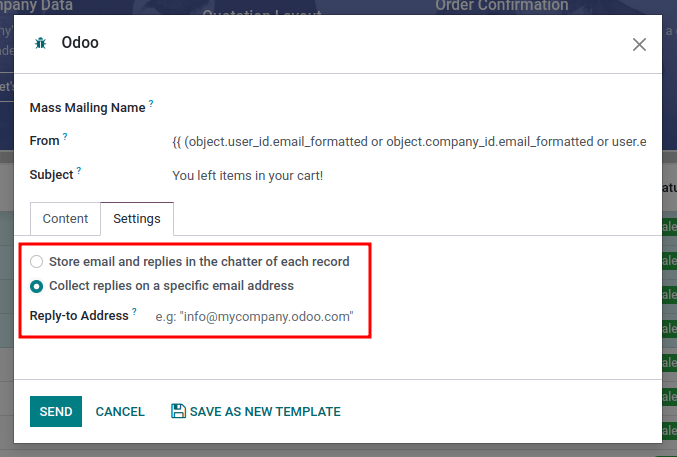
It only applies to bulk sends. To send in bulk, tick the records in a list view, click the ⚙ (Actions) icon and choose the email option; a composer opens with the template's values ready to adjust.
Links inside automated emails
Automated emails — order confirmations, invoices, reminders — often
contain links back into the database. Those links are built from the
web.base.url system parameter, which holds a single value.
In a database with several companies or websites, every link uses that
one address regardless of which company sent the email, unless the
record belongs to a website that has its own domain.
Translate a template
Templates are translated automatically into every installed language. When a specific wording has to change:
- Activate developer mode and open the template.
- Click Edit, then the language button showing the current language code (for example EN).
- Edit the translation in the pop-up — the database's default language is shown in bold.
- Click Save.
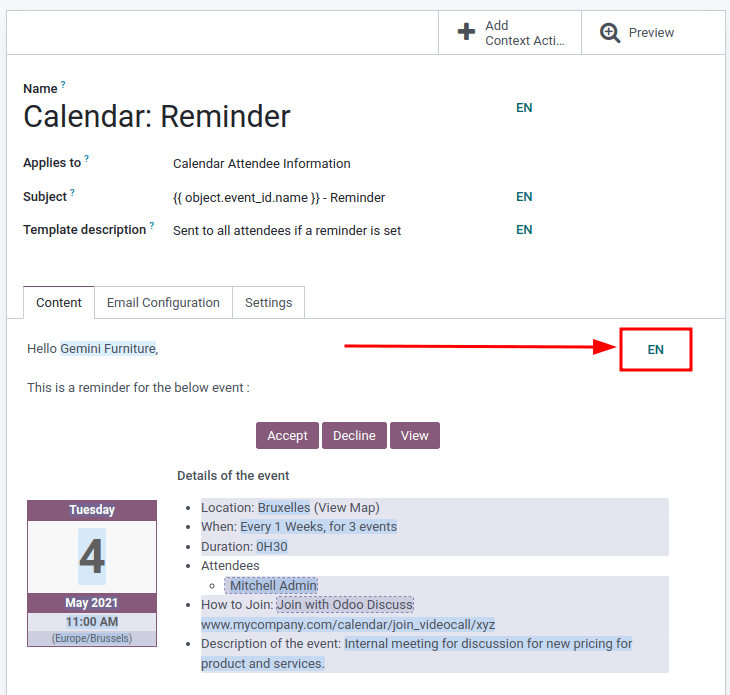
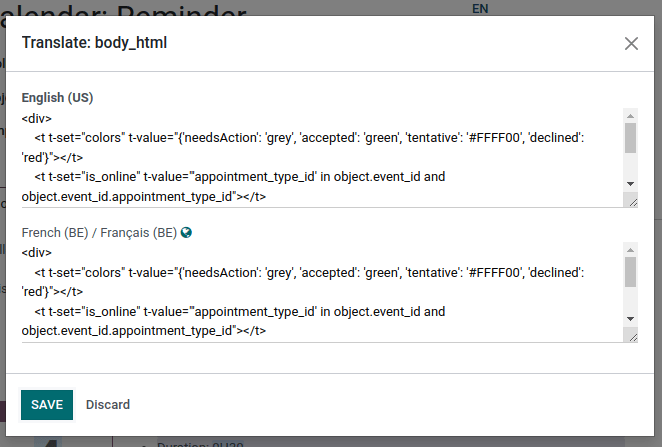
The language button only appears when more than one language is installed and you have administration rights.
Common mistakes
- Editing the XML source to fix a layout problem the editor could have handled — a syntax error there empties the email completely.
- Breaking a translation: bad syntax in one language leaves that language's email blank while the others look fine.
- Expecting Reply To to affect ordinary emails sent from a chatter. It does not — those replies follow the catchall.
Was this article helpful?
Thanks — your feedback helps.
Running a window or door factory?
Ask for a demo