
Understand how WindoorERP sends and receives email
Send outgoing email from the database
What this does
Sets up the SMTP server your database sends through, and the address your recipients see in the From line.
Before you start
- You need a domain you own and an SMTP account with a provider — your own mail server, or a sending service.
- Ask your provider for the host, port, encryption and credentials, and for what they expect in the From address.
- Port 25 is blocked by most hosting providers. Use 465, 587 or 2525.
Steps
-
01
Open Settings, find the Emails section, and enable Use Custom Email Servers.
-
02
Click Save at the top of the page.
-
03
Back in the Emails section, click Outgoing Email Servers, then New.
-
04
Fill in the connection details from your provider, and set FROM Filtering to the domain or address that provider is allowed to send as.
-
05
Click Test Connection, then send a real test email. A successful connection test only proves the login works, not that the provider will accept the message.
The addresses WindoorERP builds
Once a custom domain is set as the alias domain of a company, every
system address follows it: notifications@yourdomain.com as
the sender, catchall@yourdomain.com for replies and
bounce@yourdomain.com for delivery errors. In developer
mode, Settings › Technical › Email: Alias
Domains lets you rename them:
- Bounce Alias — catches delivery errors and fills the red envelope on the message.
- Catchall Alias — the mailbox that centralises replies.
- Default From Alias — the default sender. A local-part keeps the domain flexible; a full address overrides the sender on every outgoing email.
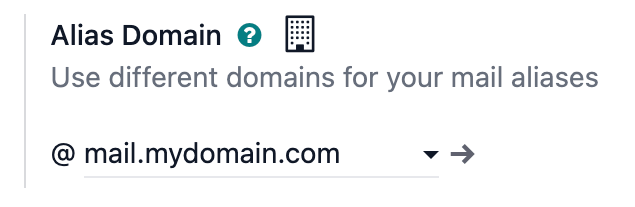
Every alias you use must have a real mailbox on that domain, and every local-part the database sends from may need whitelisting on the provider: the bounce alias, the default-from alias, the admin address, the bot address, plus any specific From set on a campaign or a template.
Which server is used for which email
With more than one outgoing server, the pick goes like this:
- A server whose FROM Filtering matches the sender's address or domain exactly.
- Otherwise, the first server with no FROM filtering at all — and the email is rewritten to come from the notification address.
- Otherwise the first server, again rewriting the sender.
"First" means lowest Priority value, and alphabetical
order between equals. This is why FROM filtering is worth setting
properly: without it, mail your customers expect from a named person
arrives from notifications@ instead.
Separate transactional and marketing mail
Day-to-day mail — quotations, invoices, notifications — and bulk campaigns behave differently enough to deserve different servers, often different providers.
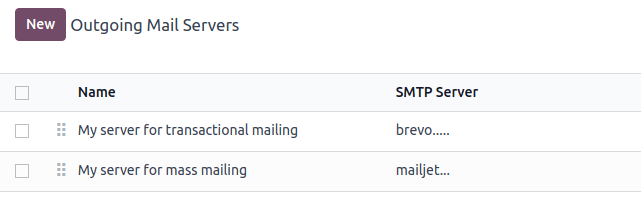
- In developer mode, go to Settings › Technical › Email: Outgoing Mail Servers.
- Create two servers: one for transactional mail, one for campaigns.
- Give the transactional server the lower
Priority value (for example
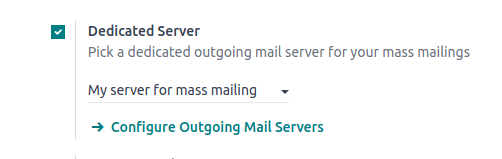
1against2), so ordinary mail always takes it. - Go to Email Marketing › Configuration › Settings, enable Dedicated Server, and select the campaign server.
Why replies seem to come from the wrong person
When a customer replies, their message is relayed to the other followers of the record. Their own address cannot be used as the sender — your domain is not allowed to send on their behalf — so the notification address is used instead, with their name kept in front of it. That is the correct behaviour, not a bug.
Common mistakes
- Setting a full address as Default From Alias and finding every email in the database now comes from it.
- Changing an alias without redirecting the old one: replies to everything sent before the change are lost.
- Pointing an SMTP account at a domain it is not authorised to send for — the provider rejects it, and the reason is buried in the error message.
- Running a campaign through a transactional provider and getting the account rate-limited.
Was this article helpful?
Thanks — your feedback helps.
Running a window or door factory?
Ask for a demo