
إضافة المستخدمين وإدارتهم
منح عميل صلاحية الدخول إلى البوابة
What this does
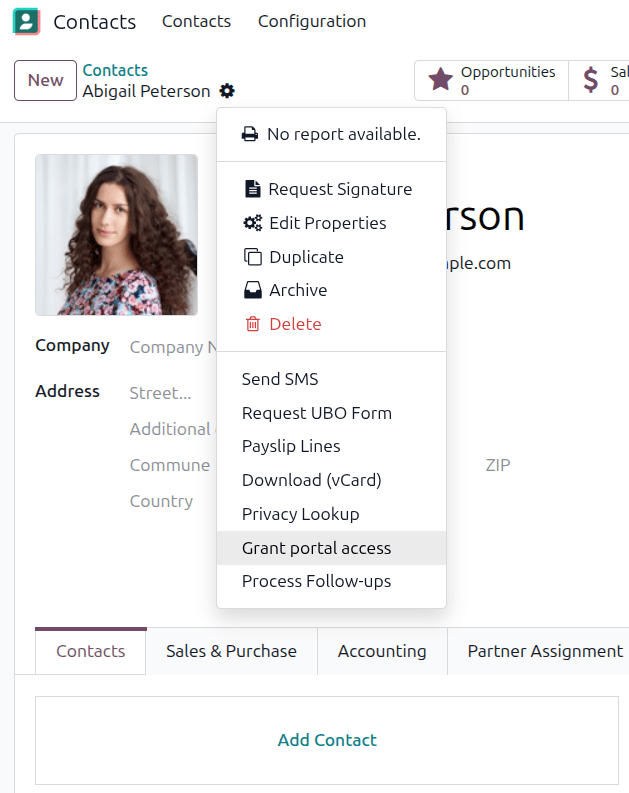
Turns a contact into a portal user, so they can sign in and follow their own orders and invoices. It all happens from the Contacts app.
Steps
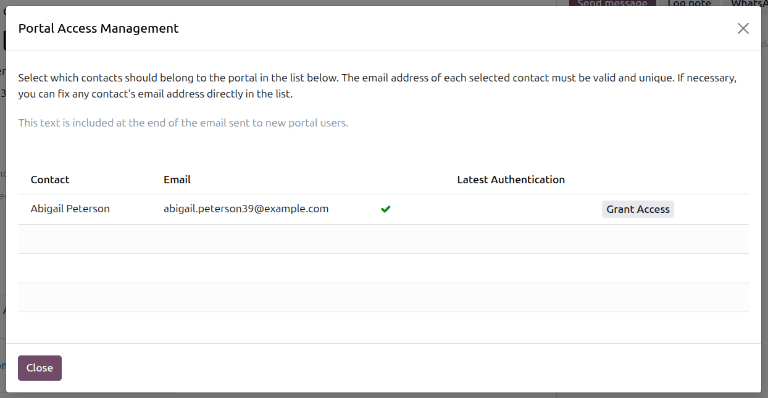
The window shows three fields: Contact, filled in automatically; Email, the login address; and Latest Authentication, the last time they used the portal — blank if they never have.
-
01
Open the Contacts app and select the contact. If they are not in the database yet, click New and enter their details first.
-
02
Click the ⚙ (Actions) menu and choose Grant portal access.
-
03
In the Portal Access Management window, check the Email — this is the address they will sign in with.
-
04
Click Grant Access. An invitation goes out to that address.
Several people at one company
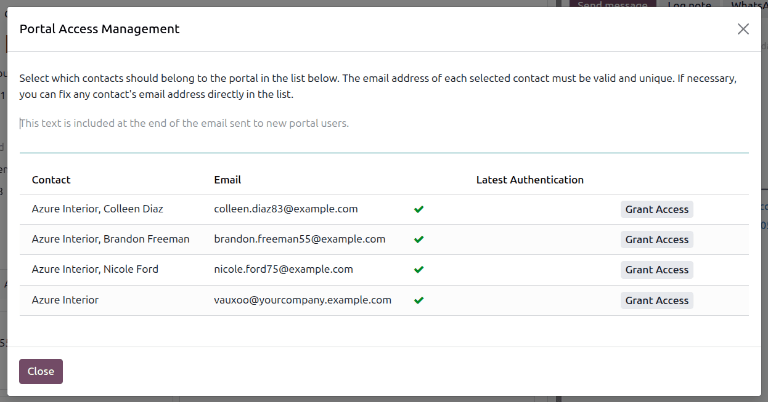
Open the company contact, then Actions › Grant portal access: every related contact is listed. Click Grant Access next to each person who needs it, and each gets their own invitation.
Take access away
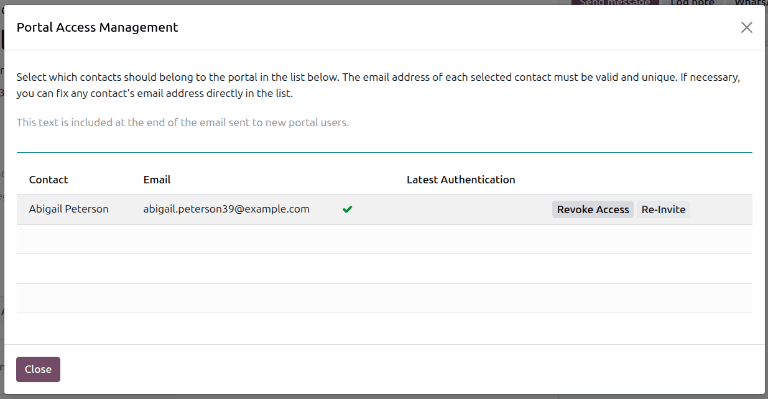
When somebody leaves the customer's company, open their contact, choose Actions › Grant portal access and click Revoke Access.
Common mistakes
- Granting access at company level without meaning to — every contact attached to that company gets in. Remove the ones who should not be there afterwards.
- Leaving access with a person who has left the customer: revoke it the day you hear about it.
- Using a shared mailbox as the login. One portal login per person, or you cannot tell who did what.
هل كان هذا المقال مفيداً؟
شكراً — ملاحظتك تساعدنا.
تدير مصنع نوافذ أو أبواب؟
اطلب عرضاً تجريبياً