
الإعدادات العامة
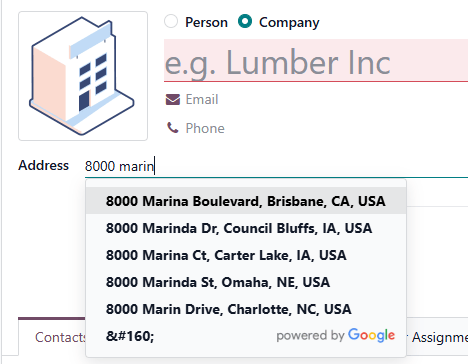
إكمال العناوين تلقائياً أثناء الكتابة
What this does
Connects WindoorERP to the Google Places API so addresses complete themselves as they are typed — fewer keystrokes on a contact form, and fewer wrong site addresses reaching an installation crew.
Before you start
- You need a Google account and a Google Cloud project.
- The Places API is billable — check Google's pricing before you turn it on for a busy database.
Steps
-
01
Open the Google Cloud console and sign in.
-
02
Click Select a project in the upper-left corner and create a new project (or pick an existing one).
-
03
From the navigation menu, go to APIs and services › Enabled APIs and services and click Enable APIs and services.
-
04
Search for Places API and select it — not Places API (New), which is not supported. Click Enable and complete the verification.
-
05
Go to APIs and services › Credentials, click Create credentials and choose API key.
-
06
Name the key, restrict it to the Places API under Select API restrictions, and click Create.
-
07
In WindoorERP, open Settings › Integrations, enable Google Address Autocomplete and click Save.
-
08
Return to Integrations, paste the API key in the field that has appeared, and save again.
Common mistakes
- Enabling Places API (New). The integration only speaks to the classic Places API.
- Pasting the key before saving the setting — the field only appears after the option is enabled and saved.
- Leaving the key unrestricted. Restrict it to the Places API, and to your own sites or IP addresses, or anyone who finds it spends your quota.
- Sharing the key in a screenshot or a ticket. Treat it like a password.
هل كان هذا المقال مفيداً؟
شكراً — ملاحظتك تساعدنا.
تدير مصنع نوافذ أو أبواب؟
اطلب عرضاً تجريبياً